
Proton Lumo Desktop Adds MCP Connectors for Safer AI Workflows
Proton Lumo desktop brings MCP connectors to Windows, macOS, and Linux, with configurable permissions for files, apps, and automated workflows.
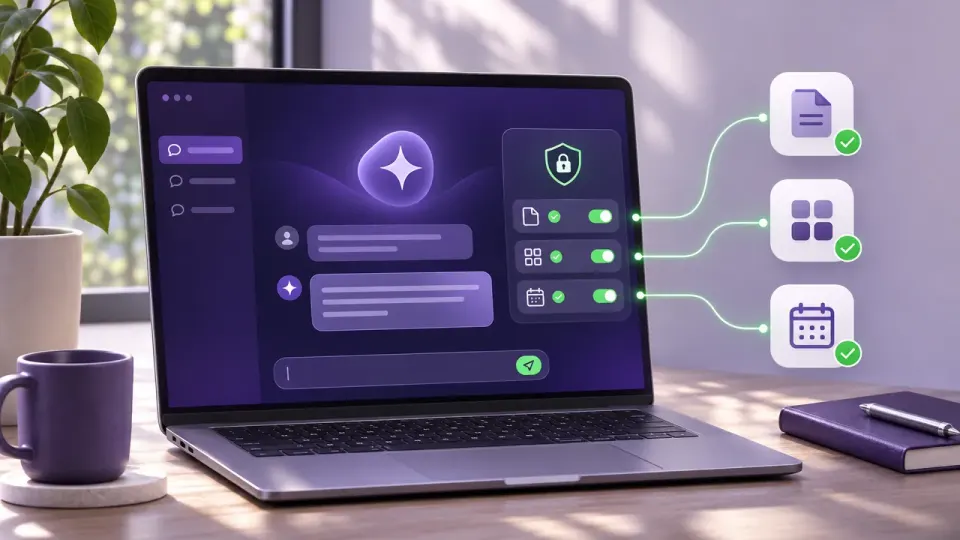
Table of Contents
Quick Answer
Proton Lumo Desktop brings the Lumo AI assistant to Windows, macOS, and Linux with support for local files, connected apps, and MCP servers. Users can configure connector permissions so actions run automatically, require approval, or remain blocked.
That combination is central to Proton’s pitch. Desktop access can make an AI assistant more useful for everyday work, but connecting it to files and services also raises questions about what information it can reach and which actions it can take. Lumo’s connector permissions are designed to give users control over those choices.
Lumo Desktop Launches on Windows, macOS, and Linux
The Lumo Desktop app brings Proton’s existing assistant to the desktop. Users can ask questions and work with information from their computer, including files and folders, or connect Lumo to other apps and tools. This can support tasks that span multiple sources instead of requiring users to manually copy information into a chat.
For example, an assistant with access to selected documents and a connected project-management service could help gather information for a status update. The specific actions available depend on the connectors a user enables and the permissions they configure.
MCP Connectors Bring Files, Apps, and Scheduled Tasks Into Lumo
Lumo supports local and remote MCP servers. MCP, or Model Context Protocol, provides a way for AI assistants to connect to external data sources and tools. With compatible servers, Lumo can use tools such as filesystem access, shell execution, and browser content fetching, as well as services including Proton’s email app, Confluence, Dropbox, and Jira.
These connectors can let Lumo retrieve information or take actions through an app, rather than only generating a response in the chat window. Access to a connector does not have to mean unrestricted access: users can configure which actions are allowed to run automatically, which require approval, and which are blocked. They can also turn off individual tools during a conversation.
Lumo also supports scheduled tasks. Users can set permissions for these tasks individually, including whether an action can run automatically or should wait for approval. That distinction matters for recurring workflows: a task that checks information and prepares a summary may need different permissions from one that changes or sends something on the user’s behalf.
Permission Controls Support Proton’s Privacy-Focused Pitch
Proton says information accessed from connected apps and files is not used to serve personalized ads or train AI models. Those are Proton’s stated privacy commitments; users should still review the access requested by each connector and consider what information a workflow needs before enabling it.
The company’s approach differentiates Lumo from assistants such as ChatGPT and Claude, as framed in coverage of the launch: Proton is emphasizing privacy alongside desktop automation. The practical test will be whether users can connect the services they need while keeping sensitive files and consequential actions under clear control.
Proton Lumo desktop is available for Windows, macOS, and Linux. Before connecting apps, folders, or MCP servers, review the permissions for each tool and decide which actions should run automatically, require approval, or remain blocked.
Frequently Asked Questions
What is Proton Lumo Desktop?
What can Lumo do with MCP connectors?
How do Lumo's connector permissions work?
Does Proton use connected files to train Lumo?
Key Takeaways
- Lumo Desktop is available for Windows, macOS, and Linux.
- The assistant can work with local files and connect to apps and tools through compatible MCP servers.
- Example connector services include Proton's email app, Confluence, Dropbox, and Jira.
- Users can allow actions to run automatically, require approval, or block them.
- Proton says information accessed through connected apps and files is not used for personalized ads or AI model training.