
AI Computer-Use Agents: How They Operate Desktop Apps
Learn how AI computer-use agents use screenshots, UI actions, and APIs to operate desktop apps - and how to verify actions and limit access.
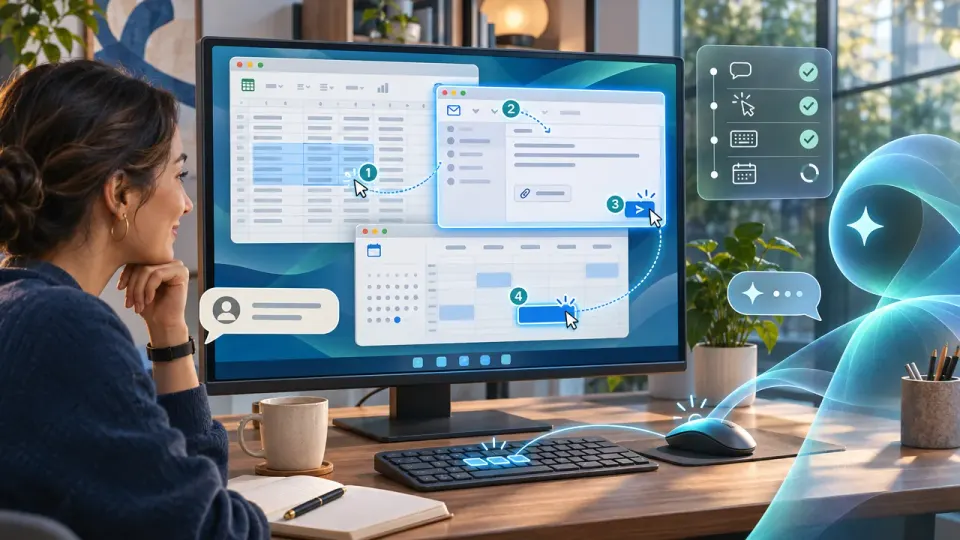
Table of Contents
Quick Answer
AI computer-use agents operate desktop apps by observing the screen, choosing an action such as clicking or typing, and checking the result. They can also use app APIs or connectors when available, combining direct integrations with visual controls as the task requires.
That process is not magic access to a desktop. It is a sequence of observations and actions, carried out through visual controls, APIs, or a combination of the two. Understanding the difference helps explain what these agents can do - and what access they should be given.
What makes an AI agent different from a chatbot?
A chatbot generally responds with text. A computer-use agent can also take steps toward completing a task, such as opening a browser, filling in a form, or moving information between applications. Its work may involve the operating system, desktop apps, files, websites, and connected services.
The agent typically receives a goal and access to a defined set of tools. It uses those tools to act, checks the outcome, and continues until it reaches the goal, encounters a problem, or needs a person to decide what to do. Its abilities depend on the tools and permissions available - it does not automatically have access to every app or file on the computer.
How the screenshot-action loop works
For example, if asked to find a meeting time in a calendar app, an agent might open the calendar, navigate to the relevant date, inspect the schedule, and report an available slot. After each action, it can use the new screen state to adjust its next step. If a dialog appears or the page has changed, the agent should respond to what it sees rather than blindly repeat an earlier click.
Visual control can work with apps that do not offer a dedicated integration, but it has limits. A button may move, a page may load slowly, or text may be difficult to read. The agent can misinterpret the screen or click the wrong element, so checking the result is an important part of the process.
Each step depends on the previous one. If a sign-in prompt appears, a download fails, or the file name is ambiguous, the agent needs to recognize the changed situation and either recover or ask for help. This is why reliable computer-use agents observe and verify throughout a task instead of treating a request as one long command.
When agents use visual controls, APIs, or both
However, visual interaction can be slower and more fragile than a direct connection. It depends on the interface being available and understandable, and it can be affected by pop-ups, layout changes, or loading delays.
Agents and APIs are not competing approaches. An agent can use a connector for a supported operation and switch to visual controls when it needs to work in an app or feature that lacks an integration. Some tasks may combine both. The appropriate route depends on the task, available tools, and permission settings.
How agents coordinate work across apps and services
A multi-app task can be treated as a plan made up of smaller actions. For example, to prepare a project update, an agent might collect information from a connected task service, open a document in a desktop app, add a summary, and then show the draft for review.
The agent needs to keep track of what it has done and what remains. It may move between a browser, desktop apps, command-line tools, code environments, and APIs if those tools are available. A reported Apple job listing, for instance, described work on agents intended to operate across apps, command lines, code, and APIs. Subsequent reporting discussed the possibility of a Mac agent, but Apple had not provided further details at publication. The example illustrates a direction for agent development, not a confirmation of a specific product’s capabilities.
The more tools an agent can combine, the more useful it may be - and the more important it is to constrain access. A task that begins as a simple request can involve several services and actions with different consequences.
What permissions and security controls matter
Computer-use agents may encounter private messages, documents, account information, or other sensitive data. Broad access increases the impact of a mistake, a misleading instruction, or an action the user did not intend. Connecting an account or granting desktop access should not be treated as harmless setup.
Before use, check which apps, files, and services the agent can access, and what it can do in each one. Prefer narrow permissions over all-or-nothing access. Where available, require approval before sending messages, making purchases, deleting files, changing settings, or taking other consequential actions. Review what the agent has accessed and keep a way to stop its work.
A practical approach is to start with a low-risk task, such as finding information or drafting text without sending it. Watch the agent’s actions, check the result yourself, and expand its permissions only when the task genuinely requires them.
Before giving an AI agent access to your desktop, review its app and service permissions. Keep approval requirements on for sensitive actions, and confirm the result before relying on it.
Step-by-Step Guide
Define the task and available tools
Specify the outcome you want and check which apps, services, and actions the agent can access. Give it only the permissions needed for the task.
Choose a visual or API route
Use an API or connector for supported service functions, and use visual controls when the task requires interacting with an app interface that has no suitable integration.
Observe and act in small steps
Have the agent inspect the current screen or tool state, perform one action, and reassess before continuing. Adjust its plan if a prompt, error, or unexpected change appears.
Verify the outcome and review access
Confirm that the requested change or file exists, and inspect the actions taken. Keep approval requirements on for sensitive actions such as sending messages, purchases, or deleting files.
Key Statistics
- The article describes a four-stage screenshot-control loop: observe, choose an action, act, and verify.This is a count of the process stages presented in the article, not an external benchmark or industry statistic.
- The article identifies three operating approaches: visual UI controls, APIs or app connectors, and a combination of both.This summarizes the interaction options explained in the article; it does not measure their adoption or performance.
- The article names four examples of consequential actions that may warrant approval: sending messages, making purchases, deleting files, and changing settings.These examples come from the article’s security guidance and illustrate actions for which users may require approval.
Frequently Asked Questions
What are AI computer-use agents?
How do AI agents use screenshots to operate desktop apps?
Can AI computer-use agents use APIs instead of clicking?
Are AI computer-use agents safe to give desktop access?
Key Takeaways
- Computer-use agents act on a computer to complete tasks, rather than only responding with text.
- Screenshot-based control follows an observe, choose, act, and verify loop.
- UI actions can work with apps that lack integrations, but may be affected by interface changes and delays.
- APIs provide a direct route to supported app functions, and agents can combine API calls with visual controls.
- Limit permissions, require approval for consequential actions, and verify results before relying on them.