
ChatGPT Mac App vs Web: Which One Should You Use?
Compare the ChatGPT Mac app vs web to see how shortcuts, app integrations, privacy, portability, and workflow affect your best choice.
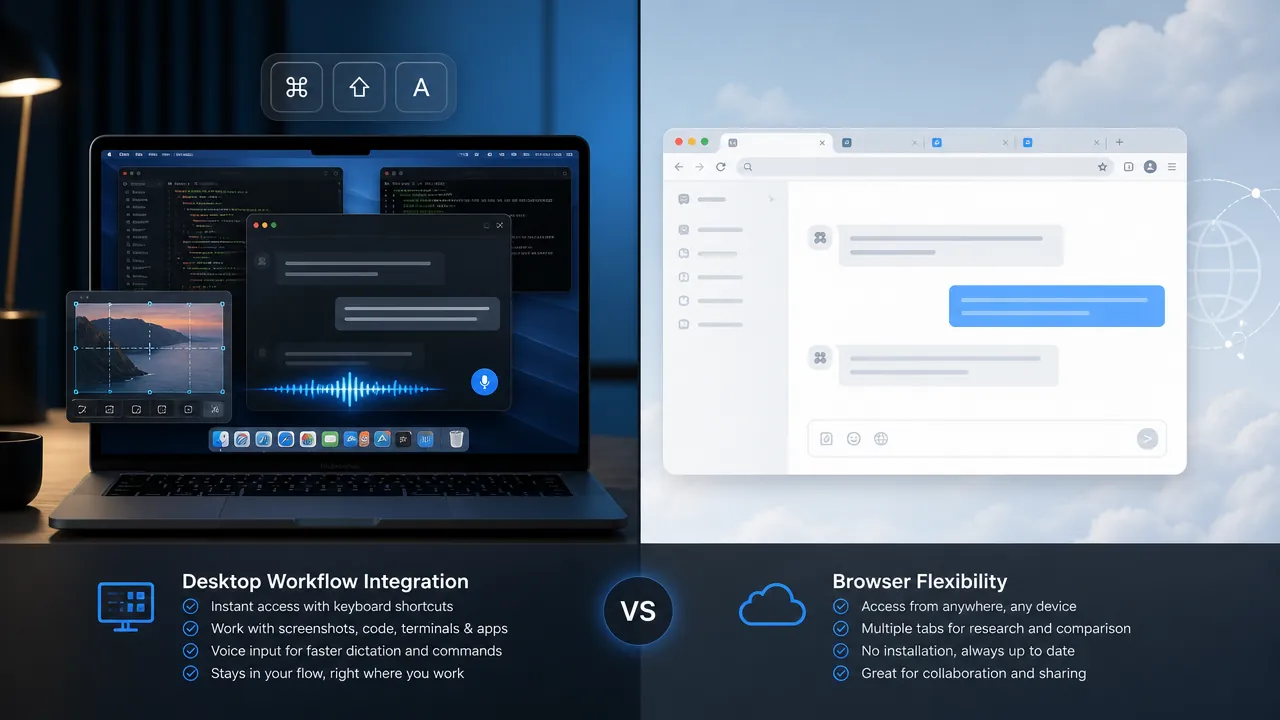
Table of Contents
Quick Answer
The ChatGPT Mac app adds faster desktop access, a system-wide shortcut, screenshots, voice features, and supported app integrations through Work with Apps. The web version is easier to install, more portable across devices, and better suited to users who mainly need standard ChatGPT conversations without additional macOS permissions.
That makes this less a question of which version has the better chatbot and more a question of how you use ChatGPT. If you regularly move between an editor, terminal, documents, and ChatGPT, the desktop app can reduce friction. If you want simple, device-independent access, the web app may be the better choice.
The core difference is workflow integration, not a different ChatGPT model
Installing the Mac app does not automatically give you a separate class of intelligence. Your available models, tools, limits, and features can depend on your account plan and OpenAI's current product support.
The main difference is where ChatGPT lives. In a browser, you open a tab, sign in, and interact with the service inside that tab. In macOS, the app can act as a system-level companion, with shortcuts and permissions that connect it more directly to desktop applications.
What the ChatGPT Mac app adds
This is useful for quick tasks such as:
- Rewriting a paragraph selected in a document
- Explaining an error message from a terminal
- Brainstorming a reply while reading an email
- Asking a follow-up question without leaving your current window
The exact shortcut and behavior can depend on the app version and your settings, but the workflow is the same: invoke ChatGPT when you need it, rather than treating it as a destination you must switch to.
It can also work with content from compatible applications through the Work with Apps feature. Support is not universal across every Mac program, but it is intended for selected coding, text-editing, and terminal workflows.
For example, you might ask ChatGPT to explain a selected code block, review terminal output, or suggest a clearer version of text in a compatible editor. This is more direct than copying content into a browser chat, especially when the material changes frequently.
However, this is not an automatic advantage in every situation. Voice mode, screen capture, image analysis, and related tools can vary by plan, operating system, app version, and rollout status. Check what your account currently supports before choosing the app solely for one feature.
How Work with Apps changes coding and editing workflows
A developer could select a function and ask for a review. Someone working in a terminal could provide command output and ask what caused the failure. A writer could select a passage and request a tighter version while keeping its tone.
The benefit is not that ChatGPT takes over every application. It is that the handoff between your work and the assistant becomes shorter and more contextual. You spend less time selecting, copying, switching windows, pasting, and explaining where the content came from.
Depending on the workflow, ChatGPT may propose changes for your review or ask for confirmation before applying them. Supported applications and actions also have their own requirements. You may need to enable macOS permissions or configure the integration before it can access application content.
Treat the feature as an assistant with scoped access, not as a replacement for checking its work. Review suggested code, edits, commands, and file changes before accepting them.
What the ChatGPT web app still does better
That simplicity matters on shared computers, managed work devices, or machines where you do not want another background application. It also makes the web app a convenient option for occasional use.
The web app may offer many of the same core capabilities, including text conversations, file uploads, image-related features, and voice or other tools where supported. Its main limitation is workflow context: it generally cannot provide the same system-wide shortcut or direct access to compatible desktop applications.
Privacy and security trade-offs to consider on a Mac
Before enabling Work with Apps or screen-related features, check which macOS permissions are requested and which applications are included. Avoid sharing passwords, private keys, customer data, confidential documents, or other sensitive material unless your policies allow it.
Do not grant broad access simply because a feature might be useful later. If you stop using screen capture or application integrations, consider disabling the related permission. These precautions do not make the web app risk-free, but they reduce the amount of local access involved.
Also distinguish the standard ChatGPT Mac app from newer AI agents that may advertise broader computer-control capabilities. Those products or experiments should not automatically be treated as part of the documented Work with Apps experience.
ChatGPT Mac app vs web: which one should you use?
Choose the ChatGPT Mac app if you:
- Use ChatGPT throughout the day
- Want a system-wide keyboard shortcut
- Frequently analyze screenshots or use voice
- Work in compatible editors, coding tools, or terminals
- Prefer quick access without managing a browser tab
Choose ChatGPT on the web if you:
- Use ChatGPT occasionally
- Move between operating systems or devices
- Do not want to install a desktop client
- Prefer to minimize local permissions
- Mostly need standard chat, file, and image workflows
The short version: the Mac app adds speed, context, and desktop integration. The web app adds portability and simplicity. For frequent Mac users, the app can become a useful layer over existing tools. For everyone else, the browser remains the lower-friction way to use ChatGPT.
Step-by-Step Guide
Compare your daily ChatGPT workflow
List how often you use ChatGPT, which applications you switch from, and whether you need screenshots, voice, or standard browser conversations.
Install the official Mac app if integration matters
Download the ChatGPT macOS app from an official OpenAI source, sign in, and confirm that your account and app version support the features you need.
Configure the keyboard shortcut
Set or confirm the macOS shortcut that opens ChatGPT from another application, then test it while working in a document, terminal, or editor.
Enable only necessary app permissions
Review macOS permissions and enable Work with Apps, screen capture, or other integrations only when they support a specific workflow.
Review context and suggested changes
Check screenshots, selected text, terminal output, code, edits, and commands before sharing or applying them, especially when sensitive information is involved.
Key Statistics
- 2 primary access modes are compared: the native macOS app and the browser-based web app.This comparison distinguishes the two ways users can access the same broad ChatGPT assistant experience and evaluates them by workflow, portability, permissions, and integration.
- 5 main decision factors shape the recommendation: access speed, desktop context, supported tools, portability, and local permissions.These factors are synthesized from the article's comparison of shortcuts, Work with Apps, screenshots, voice, cross-device access, installation, and privacy considerations.
- 3 common supported-workflow examples are highlighted: code review, terminal troubleshooting, and text editing.The article uses these examples to explain how Work with Apps can reduce copying, switching windows, pasting, and manually describing context; support varies by application.
Frequently Asked Questions
What is the difference between the ChatGPT Mac app and the web version?
Does the ChatGPT Mac app use a better model than the web app?
What is ChatGPT Work with Apps on Mac?
Is the ChatGPT Mac app safer than using ChatGPT in a browser?
Should I use the ChatGPT Mac app or the web app?
Key Takeaways
- The ChatGPT Mac app and web version generally provide the same broad assistant experience, while differences mainly involve workflow integration.
- The Mac app can be opened with a system-wide shortcut and can support screenshots, voice interactions, and compatible application context.
- Work with Apps can reduce copying and pasting when reviewing code, terminal output, or selected text in supported applications.
- The web app requires no installation, works across more operating systems, and avoids most local desktop integration permissions.
- Users should review permissions, protect sensitive information, keep the Mac app updated, and verify suggested code or edits before accepting them.