
ChatGPT Windows App vs Browser: Which Should You Use?
ChatGPT Windows app vs browser: compare setup, file access, privacy, permissions, and desktop convenience to choose the right option.
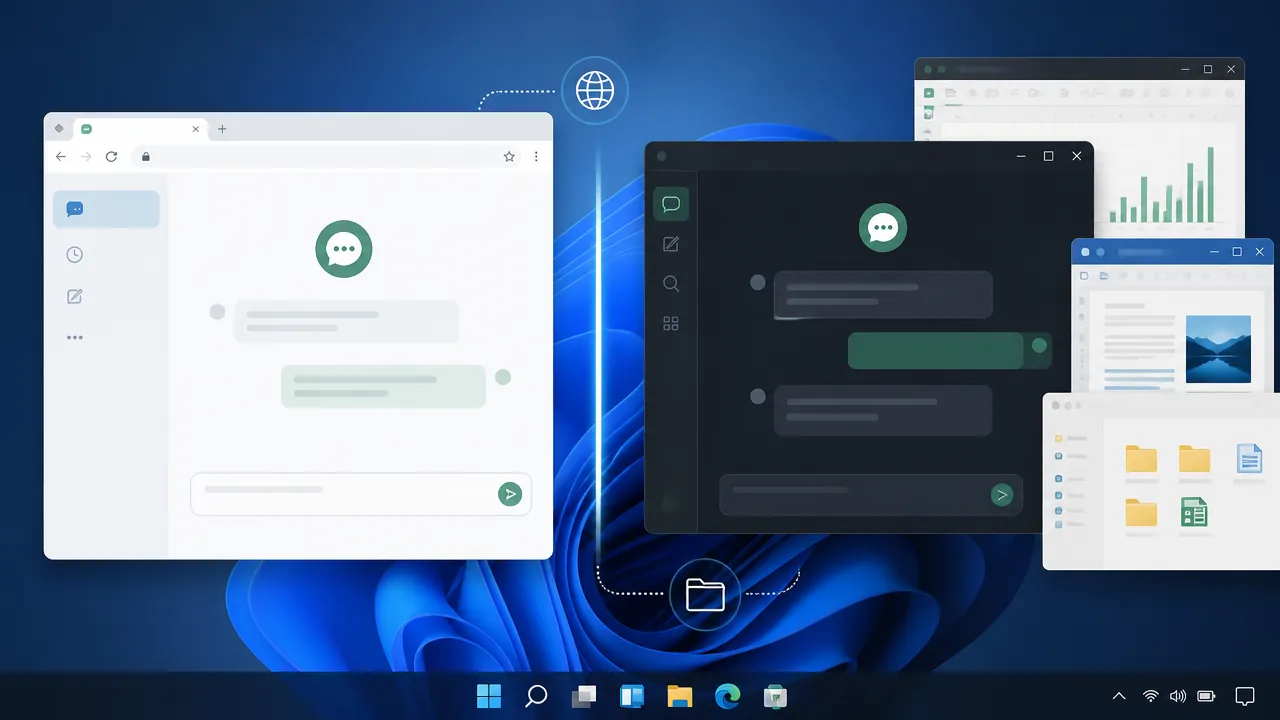
Table of Contents
Quick Answer
Use ChatGPT in a browser for simple, cross-platform access, occasional use, and more deliberate file sharing. Choose the Windows app when you want a dedicated desktop workspace or frequently work with local files, but review permissions before enabling advanced desktop features.
The short answer: browser for simplicity, app for desktop workflows
The ChatGPT Windows app makes more sense when you want a dedicated desktop workspace or expect to use ChatGPT alongside local files and other computer applications. That convenience can come with additional installation and permission considerations, especially when desktop features or AI-agent capabilities involve interacting with your computer.
Neither option is universally better. The right choice depends on your workflow and how much access to your device you are comfortable granting.
How the ChatGPT Windows app and browser experience differ
That makes the browser a practical choice if you:
- Use ChatGPT occasionally
- Switch between Windows, macOS, or other devices
- Use a shared or managed computer
- Prefer not to install another desktop application
- Want to keep ChatGPT separate from local computer content
The Windows app adds a dedicated installation to your computer. Once installed, it can be easier to open ChatGPT as part of your regular desktop routine rather than navigating to a browser tab. A separate app may also feel less distracting if you use ChatGPT frequently throughout the day.
The trade-off is maintenance. You need to keep the app updated, understand its available permissions, and decide whether its desktop features justify having another application on your device.
A desktop app can be more convenient for workflows involving files and other applications. For example, you might use it to:
- Summarize a document saved on your computer
- Analyze a spreadsheet or presentation
- Draft an email based on notes in a local file
- Work with ChatGPT while using another desktop application
- Keep a dedicated AI workspace open beside your other windows
Some newer desktop AI experiences and agent features can interact more directly with a computer when the user enables that capability. Reporting on desktop AI agents has highlighted scenarios in which an agent may work with files, applications, or other computer content. The exact behavior depends on the product, feature, operating system, and permissions involved.
That means “desktop integration” should not automatically be interpreted as unrestricted access. Check what a feature requests before enabling it, and grant access only when it is necessary for the task.
Choose the browser if you want a lower device-access footprint
The browser is the stronger default for users who value simplicity and a smaller local-access footprint. Ordinary questions, research, editing, translation, coding help, and idea generation do not usually require broad access to your computer.
A browser-first setup can also make file sharing more deliberate. You select a document and upload it when needed instead of treating your local computer as part of the assistant’s working environment.
Choose ChatGPT in a browser if your priorities are:
- Fast access with no installation
- Cross-platform use
- Minimal desktop integration
- Clear control over which files you upload
- Occasional or general-purpose conversations
This does not make browser use automatically private or risk-free. Your account, browser, uploaded files, and conversations still deserve careful handling. However, avoiding unnecessary desktop permissions can reduce the amount of local device access involved in your workflow.
Choose the Windows app if desktop convenience matters
The Windows app is worth considering when ChatGPT is part of your daily computer work. A dedicated app can reduce friction: it is available from the desktop, can sit alongside other applications, and may be better suited to file-based tasks than repeatedly opening a browser tab.
The key word is relevant . Upload only the files needed for the current task. Avoid giving an AI tool access to an entire folder, drive, mailbox, or work environment when a single document will do.
For work involving confidential company information, customer records, financial data, health information, or personal documents, check your organization’s policies before using either the app or browser. Convenience does not override data-handling requirements.
Still, install the app for a specific benefit rather than because a desktop application sounds more powerful. If your current browser workflow already handles your needs, there may be no practical reason to change.
Security and privacy checks before using either option
Use this checklist:
Desktop AI agents have raised additional security questions because broader access can expose more sensitive information if an account, application, or workflow is compromised. Limiting access is a sensible precaution, even when you trust the service.
If you are using a work computer, confirm whether your employer allows external AI tools. A company policy may restrict uploading internal documents regardless of whether you use the browser or Windows app.
Our recommendation: start in the browser, then add the app when it solves a specific need
For ordinary chatting, research, writing, and occasional file uploads, choose ChatGPT in a browser. It is quick to access, works across platforms, and avoids installing a desktop app solely for convenience.
Choose the Windows app when you specifically benefit from a dedicated workspace, frequent local-file workflows, or closer desktop integration. Before enabling additional capabilities, review the requested permissions and share only what the task requires.
The practical approach is browser-first: try ChatGPT in the browser, then download the Windows app if dedicated desktop access genuinely makes your routine easier. The best option is the one that fits your workflow while giving you a level of device access you can manage confidently.
Step-by-Step Guide
Start with the browser
Open ChatGPT in your preferred browser, sign in, and test it for everyday conversations, research, writing, coding, and occasional file uploads.
Identify your desktop workflow needs
Determine whether you regularly need a dedicated window, local-file workflows, or access alongside other Windows applications.
Install the Windows app for a specific benefit
Download and use the Windows app only if its dedicated workspace or desktop integration reduces friction in your routine.
Review permissions before enabling features
Read each permission prompt and grant only the access required for the current task, preferring a single file or limited folder over broad device access.
Protect sensitive information
Check organizational policies, remove unnecessary personal data, use strong account security, and avoid uploading confidential files unless approved and necessary.
Reassess access after updates
Keep Windows, your browser, and the app updated, then revisit permissions whenever new desktop or agent capabilities are enabled.
Key Statistics
- The article compares 2 primary access methods: the ChatGPT Windows app and the browser experience.This comparison is based on the workflow, setup, file-access, and privacy distinctions described in the article; it is not a third-party performance benchmark.
- The privacy checklist contains 5 recommended permission actions: read prompts, assess necessity, limit scope, disable unused features, and revisit access.These actions are derived from the article's security guidance and reflect a least-access approach rather than a measured security score.
- The recommendation identifies 3 common reasons to choose the Windows app: a dedicated workspace, frequent local-file workflows, and closer desktop integration.These use cases are synthesized from the article's recommendation and are not claims that the app performs better in every workflow.
Frequently Asked Questions
Is ChatGPT better in the Windows app or browser?
What is the main difference between the ChatGPT Windows app and browser?
Is the ChatGPT Windows app safe to use with local files?
Should I use ChatGPT in a browser for privacy?
When should I install the ChatGPT Windows app?
Key Takeaways
- The browser is the simplest choice because it requires no installation and works across operating systems.
- The Windows app can provide a more convenient dedicated workspace for frequent desktop use.
- Browser use generally makes file sharing more deliberate because you select files manually for upload.
- Desktop features may involve access to local files, applications, or other computer content, so review permissions carefully.
- A browser-first approach is practical: install the Windows app only when it solves a specific workflow need.