
Claude Code Subagents: Fix Common Errors Step by Step
Troubleshoot Claude Code subagents with practical fixes for discovery, model, tool, permission, context, and validation errors.
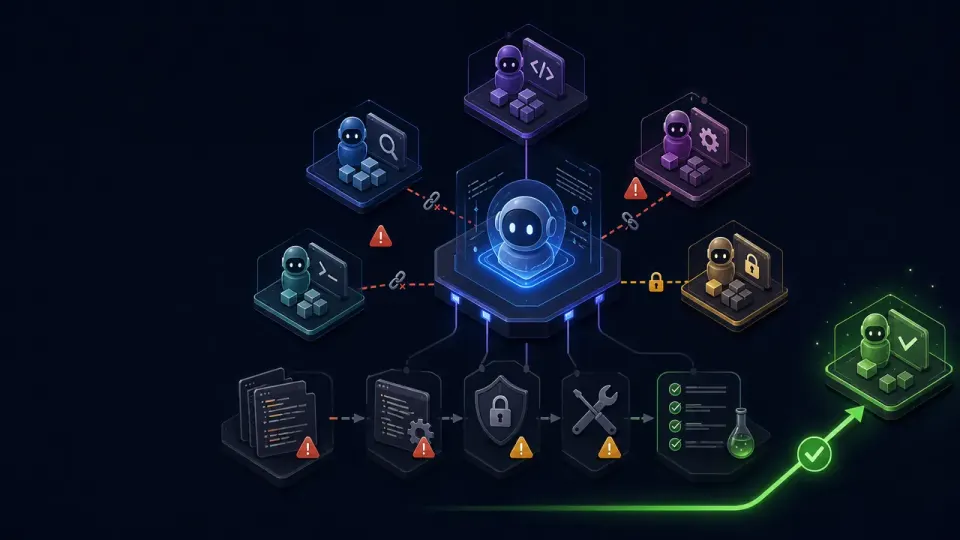
Table of Contents
Quick Answer
Fix Claude Code subagent errors by checking the agent file location, Markdown frontmatter, description, model, tools, permissions, and prompt context. Then reproduce the issue with a minimal task, review the diff, and require tests or other validation before accepting the result.
When a subagent fails, the cause is usually configuration rather than code quality. Use this symptom-first guide to diagnose the most common problems.
How Claude Code subagents work before you troubleshoot
Depending on the configuration, the file can specify:
- The agent's name and description
- The model it should use
- Tools it can access
- Permission or execution settings
- Instructions for its role and expected output
This separation is useful for focused work. A testing agent, for example, can be instructed to run tests and report failures without carrying the entire implementation discussion in its context.
For example, instead of asking an agent to “finish the API work,” provide the endpoint, files it may edit, acceptance criteria, and the command it must run to verify the change.
Fix subagents that are not being invoked
A single formatting error can prevent discovery or cause a setting to be ignored. Start with a minimal agent file, confirm that Claude can discover it, and add complexity only after the basic version works.
Weak description:
Handles testing.
Stronger description:
Use this agent when a code change needs unit tests, test failure analysis, or a test report. It may edit test files but must not modify application code.
Make the trigger conditions specific. Mention the task type, file boundaries, and expected result. If you need predictable behavior, invoke the agent directly rather than relying only on automatic selection.
Check each supported agent-file location, then remove obsolete duplicates or give the definitions clearly different names. Decide whether the agent belongs to the whole project or only to your personal workflow, and keep the intended scope explicit.
Fix model, tool, permission, and context errors
For troubleshooting, temporarily use a model you know is available. Once the agent works, change the model setting and test again. This separates model-access problems from prompt or tool problems.
- The tools listed in the agent configuration
- Any tool allowlists or denials
- The session's permission mode
- Project-level permission rules
- Restrictions on shell commands, file writes, or sensitive paths
Do not solve every access error by granting broad permissions. Give the agent only the tools required for its job. A read-only reviewer should not receive write or shell access, while a build agent may need narrowly controlled command execution.
A useful task prompt might say:
Review src/auth/session.ts and tests/auth/session.test.ts . Preserve the existing public API. Fix the failing refresh-token test, edit only those files, and report the test command and result.
This makes the task reproducible and reduces irrelevant exploration.
Prevent incorrect edits, incomplete work, and missing validation
- Files or directories the agent may change
- Files it must not change
- The desired behavior
- Acceptance criteria
- Conditions for stopping
- The format of the final report
Ask the agent to report changed files, unresolved issues, and assumptions. Review the diff rather than trusting a success message.
For example:
After editing, run the relevant unit tests and type checker. Do not report completion until both finish. Return the changed files, commands run, and any failures.
The required tools must also be available. If the agent cannot run the command, it should report that limitation instead of implying the work is verified.
A safe Claude Code subagent troubleshooting checklist
Use this sequence when diagnosing a failing custom agent:
Treat subagents as privileged automation when they can read files, execute commands, or modify a repository. Apply least privilege, avoid passing untrusted instructions into the workflow, and review generated changes before merging them.
Start with one failing subagent and apply the checklist from discovery through validation. Once fixed, document its boundaries and verification process in the agent configuration so the same error is less likely to return.
Step-by-Step Guide
Confirm the agent file location
Verify that the Markdown agent file is stored in a supported personal or project-level agents directory and that Claude is reading the intended configuration.
Validate the Markdown and frontmatter
Check the filename, structure, required frontmatter, and fields such as name, description, model, and tools. Start with a minimal file before adding advanced settings.
Clarify invocation conditions
Rewrite the description to identify the task types, file boundaries, and expected results that should trigger the subagent. Invoke it directly when automatic selection is unreliable.
Check models, tools, and permissions
Confirm that the selected model is supported and available, then review tool allowlists, permission modes, project rules, shell access, file writes, and sensitive-path restrictions.
Provide explicit task context
Include authoritative file paths, requirements, constraints, acceptance criteria, stopping conditions, and the required report format instead of assuming the subagent shares the parent conversation.
Validate and review the result
Require targeted tests, linters, type checks, or builds, then inspect the diff, changed-file list, tool output, unresolved issues, and assumptions before merging changes.
Key Statistics
- The troubleshooting checklist contains 12 diagnostic checks, from confirming the agent file location to documenting its operating boundaries.Counted from the safe Claude Code subagent troubleshooting checklist in this Partnerin AI guide.
- The guide highlights 4 primary configuration areas that commonly cause failures: model, tools, permissions, and context.Derived from the article's section on model, tool, permission, and context errors.
- The article recommends 3 core validation categories after edits: tests, linters or type checks, and builds.Summarized from the validation guidance and completion prompt examples in this Partnerin AI article.
Frequently Asked Questions
Why is Claude Code not invoking my subagent?
How do I fix a Claude Code subagent that uses the wrong model?
Why can my Claude Code subagent not edit files or run commands?
How can I give a Claude Code subagent more context?
How do I verify that a Claude Code subagent completed its work correctly?
Key Takeaways
- Store the agent file in a supported personal or project-level agents directory and validate its Markdown frontmatter.
- Use specific descriptions that explain when Claude should invoke the subagent and what boundaries it must follow.
- Check model availability, configured tools, permission modes, project restrictions, and access to required files or commands.
- Pass file paths, requirements, acceptance criteria, stopping conditions, and expected outputs explicitly into the subagent prompt.
- Review changed files and require tests, linters, type checks, builds, or other verification before considering the task complete.