
Gemini App vs Web: Key Differences, Features and Best Uses
Gemini app vs web explained: compare mobile features, Android controls, voice tools, research workflows, syncing, and platform limits.
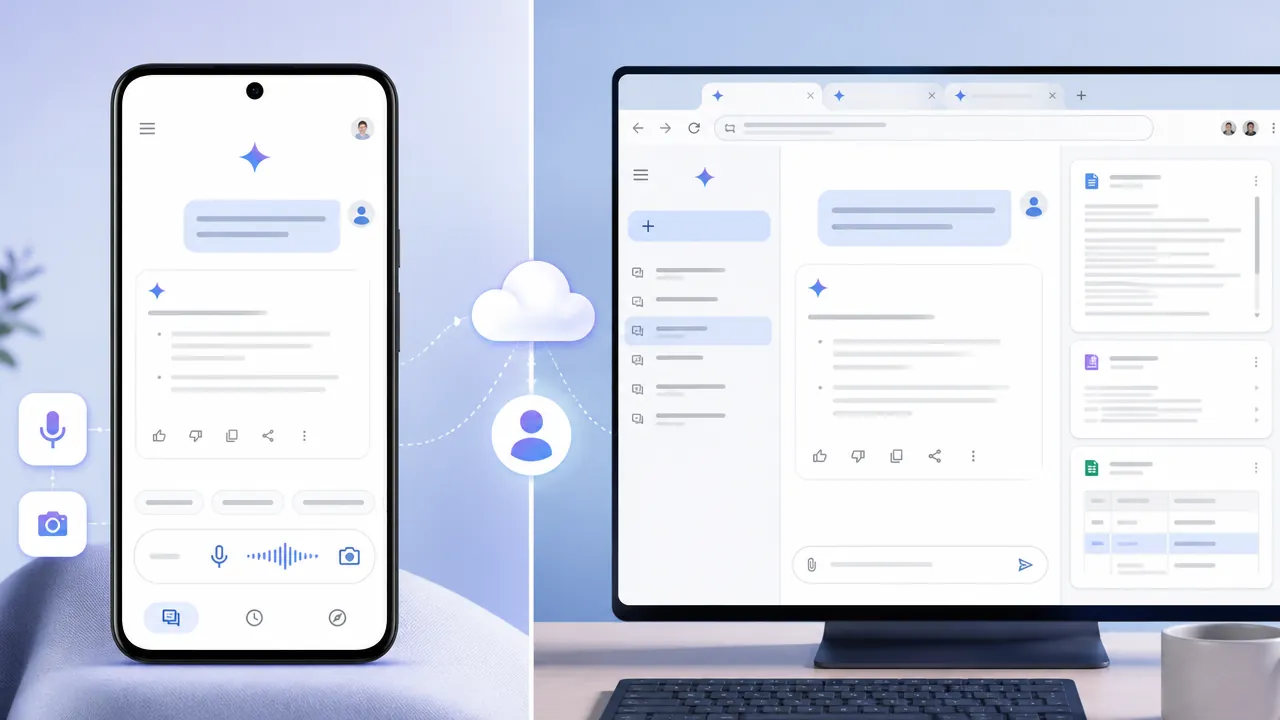
Table of Contents
Quick Answer
The Gemini app is best for mobile voice conversations, camera and screen sharing, accessibility, and Android assistant actions, while Gemini on the web is better for long prompts, research, writing, and multitasking. Both can provide similar core AI capabilities, but feature availability depends on your device, operating system, Google Account, subscription, country, language, and rollout status.
The biggest differences are mobile features, Android device integration, voice and camera tools, screen size, and account-level availability. They are not simply a matter of free versus paid access. Your country, language, device, operating system, Google Account, subscription, and feature rollout can all affect what you see.
What the Gemini app and web version have in common
Both versions can handle core Gemini tasks, including:
- Answering questions and explaining concepts
- Generating, rewriting, and summarising text
- Analysing supported images and files
- Brainstorming ideas and creating plans
- Continuing conversations through chat history, where history and activity settings allow it
- Connecting with supported Google services and apps, depending on your account and permissions
A conversation started on one device may be available on another when you use the same Google Account and have the relevant activity and history settings enabled. That does not guarantee identical behaviour. A feature may be available on the web but not on your phone, or it may require a particular subscription, language, or operating system.
How access and setup differ on Android, iPhone, iPad, and the web
The web version requires a supported browser, an internet connection, and usually a Google Account. It is convenient on a laptop, desktop, Chromebook, or tablet because there is no app installation involved. You can open it in a browser and use a keyboard for longer prompts.
On mobile, you install the Gemini app through Google Play on Android or the App Store on iPhone and iPad, where the app is available. Setup and features vary by location and device. Android users may also be offered Gemini as a replacement for Google Assistant on compatible phones. That gives the mobile experience a deeper connection to device actions than simply opening Gemini in a desktop browser.
The iPhone and iPad app provides a mobile Gemini experience, but it does not offer the same system-level assistant replacement and device-control access available on compatible Android devices. In both cases, availability can change as Google expands the app to more regions and devices.
Where the Gemini mobile app has an advantage
On supported devices and accounts, Live can also work with visual input. For example, you might point your phone camera at an object and ask Gemini to describe it, or share your screen while asking for help with something displayed there. The exact tools and limits depend on the app version, device, account, and rollout status.
Mobile cameras can make Gemini useful for practical, in-the-moment tasks: interpreting a sign, discussing a product, reviewing a diagram, or getting help while preparing something. However, AI responses can be wrong. Visual assistance should not replace navigation aids, professional advice, or mobility support.
- Making calls or sending messages
- Setting alarms and timers
- Controlling selected device settings
- Working with supported Google apps
- Responding to assistant-style requests from the phone
This is a major difference between the Android app and the web version. A browser tab can answer a question about setting an alarm, but it does not provide the same direct access to your phone's assistant functions.
If your priority is asking questions while holding your phone, either mobile platform may work well. If you want Gemini to operate as an integrated device assistant, compatible Android hardware offers the deeper experience.
Why Gemini on the web is better for focused work
- Paste or edit a long brief
- Compare Gemini's answer with other browser tabs
- Draft reports, emails, or articles
- Review files and detailed responses
- Keep several work windows open
- Refine a prompt through multiple revisions
For example, a student might use the web version to analyse a long document and organise notes, while using the phone app to ask a quick follow-up question during a commute.
These features are not guaranteed to appear for every user or on every device. Access may depend on your Google Account, subscription, country, language, and Google's current rollout. The web version is often the better place to look for advanced productivity tools, but the app may also gain selected features over time.
Do Gemini chats, settings, and Google service connections sync?
A missing conversation does not necessarily mean the app and web versions are separate. Check that you are using the same account and review history, activity, and auto-delete settings. Temporary chats or conversations created with history disabled may not behave like saved chats.
An extension available in the web experience may not support every action in the mobile app. Conversely, mobile permissions can make certain phone-based actions possible that have no equivalent in a browser. Always review what access you grant before connecting a service.
Is the Gemini app different from the web version in price and model access?
Not necessarily. App-versus-web differences and free-versus-paid differences are separate questions. Your subscription can affect model selection, usage limits, Deep Research access, and other advanced capabilities on either platform. A paid plan does not guarantee that every feature works identically on Android, iPhone, iPad, and the web.
Google's AI plans and Gemini benefits can change, so check the current plan details before subscribing. If a model or feature is missing, confirm your account, app version, location, language, and device eligibility before assuming the platform is the cause.
Which Gemini version should you use?
Use the mobile app when you want:
- Gemini Live and hands-free voice conversations
- Camera-based questions or screen sharing
- Accessibility features such as supported spoken visual assistance
- Quick help while away from your desk
- Android assistant actions and device controls
Use the web version when you want:
- Long prompts and detailed writing
- Research and document-heavy tasks
- A larger screen for reviewing responses
- Easier multitasking with other browser tabs
- Keyboard-heavy productivity and extended editing
The practical rule is simple: use mobile for voice, camera, accessibility, and Android actions; use the web for focused work, research, and long-form writing. Try both with the same Google Account, then check Google's current availability information before relying on a specific feature.
Step-by-Step Guide
Choose your primary workflow
Select the mobile app for voice, camera, accessibility, and on-the-go help, or choose the web version for writing, research, long prompts, and multitasking.
Install or open Gemini
Install Gemini from Google Play on a supported Android device or from the App Store on iPhone and iPad, or open Gemini in a supported web browser.
Sign in with the same Google Account
Use the same account across mobile and web if you want eligible conversations, settings, and service connections to remain available across devices.
Review history and activity settings
Check Gemini Apps Activity, chat history, and auto-delete settings before assuming a missing conversation indicates that the app and web versions are separate.
Check feature eligibility
Verify your country, language, operating system, device, subscription, permissions, app version, and current Google rollout status before relying on a specific feature.
Key Statistics
- The comparison covers 2 primary Gemini access modes: a mobile app experience and a browser-based web experience.This two-mode distinction is based on Google's product structure described in the article and explains the central app-versus-web comparison.
- The mobile experience spans 3 device categories discussed here: Android phones, iPhones, and iPads.The article distinguishes Google's Android, iPhone, and iPad app experiences, noting that Android can provide deeper assistant integration.
- The article identifies 5 major availability variables: country, language, device or operating system, Google Account, and subscription.These variables reflect the access conditions described in Google's Gemini experience and account-level feature availability guidance.
- The article highlights 2 primary productivity strengths for the web version: larger-screen review and keyboard-based work.These strengths are derived from the workflow comparison in the article, which positions the browser experience for long prompts, research, writing, and multitasking.
Frequently Asked Questions
What is the difference between the Gemini app and the web version?
Is Gemini better on the app or website?
Does Gemini sync between the app and web?
Can Gemini replace Google Assistant on Android?
Is Gemini on the app free compared with Gemini on the web?
Key Takeaways
- The Gemini app and web version share core capabilities such as answering questions, generating text, analysing supported files, and continuing eligible conversations.
- Mobile has the advantage for Gemini Live, voice input, camera-based questions, screen sharing, accessibility, and on-the-go assistance.
- Compatible Android phones can offer deeper assistant integration and device actions than the web version or the iPhone and iPad app.
- The web version is generally better for long prompts, document-heavy work, research, writing, browser multitasking, and reviewing detailed answers.
- App-versus-web differences are separate from free-versus-paid access, so account, subscription, location, language, device, and rollout status all matter.